
Apple's Human Interface Guidelines Overview
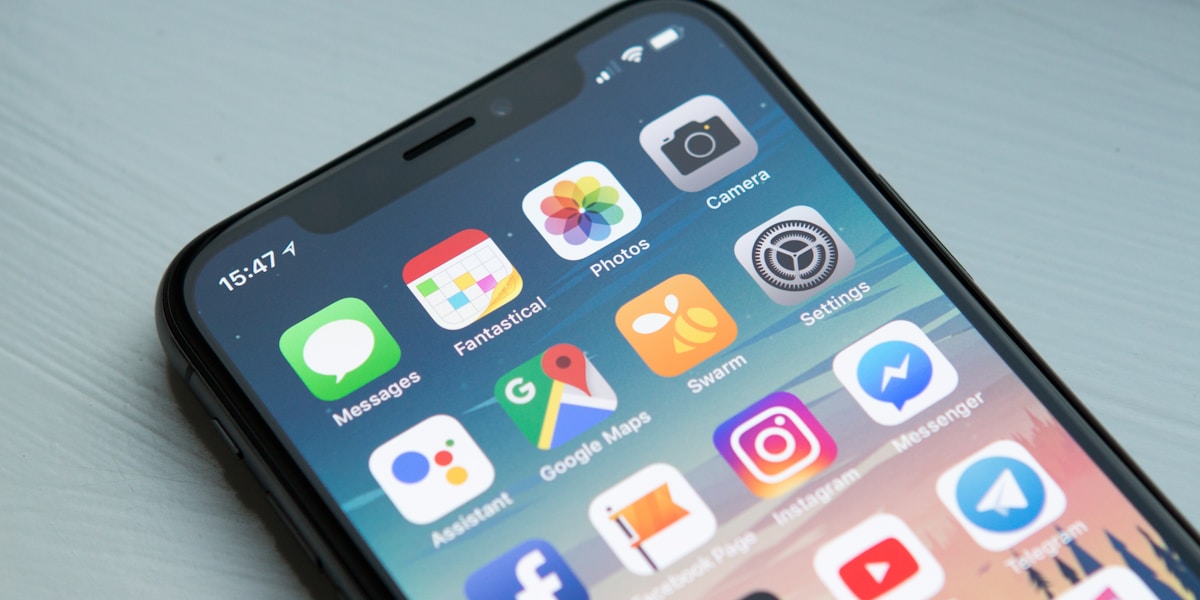
Apple's Human Interface Guidelines (HIG) provide detailed requirements for app icons. Following these guidelines ensures your app icon looks great on all Apple devices and passes App Store review.
📱 iOS App Store Statistics 2025
iOS Icon Technical Requirements
| Requirement | Specification | Why It Matters |
|---|---|---|
| Format | PNG (no compression) | PNG is lossless, preserves quality |
| Color Space | sRGB or P3 | Accurate colors on all displays |
| Transparency | No transparency allowed | iOS applies its own mask |
| Rounded Corners | Do NOT pre-round | System applies uniform mask |
| Drop Shadow | Do NOT add shadows | System adds appropriate shadow |
| Gloss Effect | No glossy overlay | Deprecated since iOS 7 |
8 Design Principles for iOS App Icons
1. Simplicity is Key
Use a single, focused center point. Icons with multiple elements become unrecognizable at small sizes. Think of the most iconic representation of your app.
2. Scalability
Test your icon at 16x16, 32x32, 60x60, and 1024x1024. It must be recognizable at all sizes. Fine details disappear at small sizes.
3. Unique Silhouette
Your icon should be recognizable from its shape alone, even without color. Avoid generic shapes that blend with other apps.
4. Appropriate Color Palette
Use 3-5 colors maximum. Ensure good contrast. Test on different backgrounds (light, dark, wallpaper).
5. Contextual Relevance
Icon should communicate what your app does. A finance app should look financial, a game should look fun.
6. No Text or Screenshots
Never use words in your icon (except maybe "1" for badge). Screenshots as icons are rejected.
7. Consistent Lighting
Use a single light source direction (typically top-left). Avoid competing shadows.
8. App Family Consistency
If you have multiple apps, create a recognizable family with consistent style, colors, or shapes.
15 Things to Avoid in iOS App Icons
App Store Icon Optimization
📱 App Store Specific Tips
- 1024x1024 is critical: This is what users see when browsing the App Store. Make it perfect!
- Stand out in search results: Your icon competes with 10+ others on screen. Use bold colors and clear shapes.
- Consider A/B testing: Use App Store Connect to test different icons with different user segments.
- Seasonal updates: Many successful apps update icons for holidays (Christmas, Halloween, etc.)
- Localization: Consider different icons for different regions if culturally relevant.
How to Test Your App Icon
📱 On-Device Testing
- Install your app on actual iPhones and iPads
- Test on different iOS versions
- Check on different wallpapers (light, dark, colorful)
- Test with Reduce Transparency setting ON
- Test with Increase Contrast setting ON
👥 User Testing
- Show users your icon alongside competitors
- Ask: "What does this app do?"
- Ask: "Would you download this?"
- Test recognition at small sizes
- Get feedback on color and shape
Frequently Asked Questions
Q: Does Apple reject apps for bad icons?
Yes! Icons that don't follow HIG, use screenshots, or have poor quality can be rejected. Also, icons that are confusing or misrepresent the app's purpose may be rejected.
Q: Can I use transparency in iOS icons?
No. iOS does not support transparent app icons. Any transparent areas will render as black. Always use opaque backgrounds.
Q: Should I follow iOS icon trends?
Follow design principles, not fleeting trends. A good icon lasts for years. iOS 6's skeuomorphic icons are gone - focus on clean, modern, flat design with subtle depth.
Create iOS-Ready App Icons
Upload your design and get all iOS icon sizes automatically.
🍎 Generate iOS Icons →