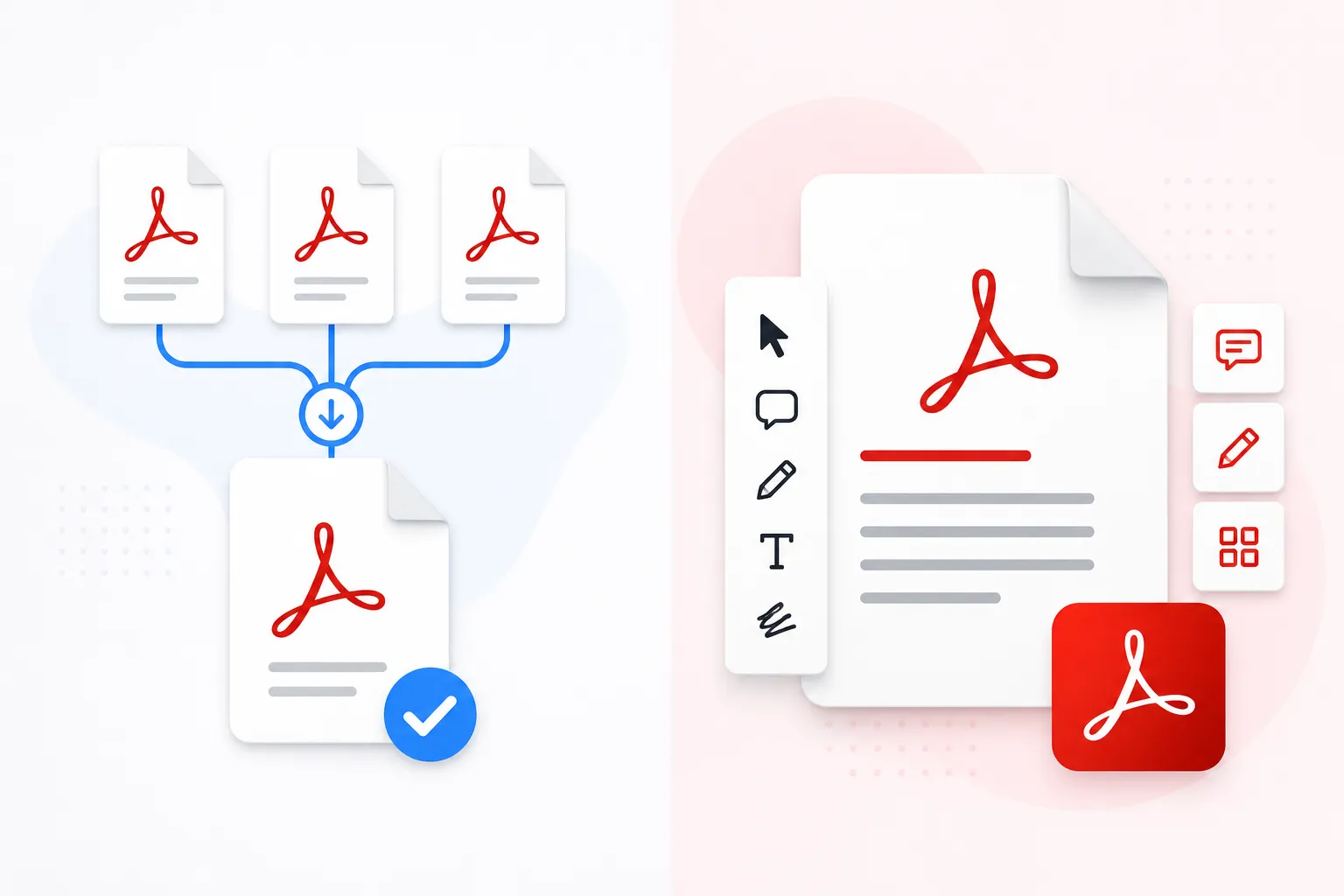

Introduction to PDF Merging
Merging PDF files is a common task for students, professionals, and businesses alike. However, many people struggle with quality loss when combining documents. This comprehensive guide will show you exactly how to merge PDF files without compromising on quality.
📊 Did You Know?
Over 2.5 billion PDFs are created daily, and quality loss affects approximately 30% of merged documents when using improper tools.
Why Quality Matters When Merging PDFs
Quality preservation is crucial for several important reasons:
- Professional Presentations - Poor quality documents reflect badly on your professionalism
- Legal Documents - Courts require exact reproduction of original documents
- Technical Reports - Diagrams and schematics must remain clear and readable
- Marketing Materials - Brand consistency depends on high-quality visuals
- Archival Purposes - Historical documents need to preserve original appearance

Common Quality Issues & Their Causes
Understanding what causes quality degradation helps you avoid these pitfalls:
Blurry Text
Caused by improper compression or resizing during the merge process
Color Distortion
Results from color space conversion or incorrect profile handling
Missing Fonts
Occurs when original fonts aren't properly embedded
Image Artifacts
Visible when images are over-compressed during merging
10 Tips for Maintaining Quality When Merging PDFs
Follow these expert tips to ensure your merged PDFs look perfect:
- Use client-side processing - Avoid uploading to servers that may compress your files
- Choose the right compression settings - Toggle compression based on your needs
- Keep original resolution - Never resize pages during the merge process
- Preserve embedded fonts - Ensure all fonts are maintained in the output
- Maintain color profiles - Keep ICC profiles intact for accurate colors
- Use lossless compression when possible - Especially for text-heavy documents
- Check page sizes before merging - Consistent dimensions prevent scaling issues
- Validate source PDFs first - Ensure originals aren't already corrupted
- Preview before finalizing - Always review the merged document
- Keep backups of originals - Never overwrite your source files
💡 Pro Tip
For critical documents like contracts or legal papers, always disable compression to maintain 100% original quality.
Step-by-Step Guide to Merge PDFs with Quality Preservation
Here's exactly how to merge your PDFs while maintaining perfect quality:
Step 1: Prepare Your Files
Ensure all PDFs you want to merge are of high quality. Check for any existing issues like blurry text or missing fonts.
Step 2: Choose a Quality-First Tool
Select a PDF merger that processes files locally (client-side) rather than uploading to servers. Our tool processes everything in your browser.
Step 3: Upload and Arrange
Drag and drop your PDFs in the correct order. Most tools allow reordering before merging.
Step 4: Configure Settings
If quality is critical, disable compression. For general use, enable smart compression which balances size and quality.
Step 5: Merge and Verify
Click merge, then download and verify the output quality before deleting originals.
Compression vs Quality: Finding the Perfect Balance
Understanding compression types helps you make informed decisions:
| Compression Type | Quality Impact | File Size Reduction | Best For |
|---|---|---|---|
| None | 0% loss | 0% | Legal, medical, archival |
| Lossless | 0% loss | 10-30% | Text-heavy documents |
| Smart Compression | Minimal (5-10%) | 40-60% | General business docs |
| High Compression | Noticeable | 70-85% | Email attachments |
Best Practices for Professional Results
Follow these professional best practices:
- Standardize page sizes - Convert all PDFs to the same page size before merging
- Optimize images separately - Compress images before incorporating into PDFs
- Use PDF/A for archiving - This standard ensures long-term readability
- Add bookmarks for navigation - Makes large merged documents easier to navigate
- Include a table of contents - Professional touch for multi-page documents
Troubleshooting Common Quality Problems
❌ Problem: Blurry Text After Merging
Solution: Disable compression and ensure source PDFs don't use low-quality settings. Re-merge with compression turned off.
🎨 Problem: Colors Look Different
Solution: Check that all source PDFs use the same color profile (preferably sRGB). Convert if necessary before merging.
📝 Problem: Fonts Not Displaying Correctly
Solution: Ensure fonts are embedded in source PDFs. Our tool automatically preserves embedded fonts.
Conclusion & Next Steps
Merging PDFs without losing quality is absolutely possible when you use the right tools and follow best practices. Remember these key takeaways:
- Always use client-side PDF merging tools for maximum privacy and quality control
- Disable compression for critical documents requiring perfect quality
- Preview your merged document before deleting originals
- Keep backups of your original PDF files
Ready to merge your PDFs? Try our free PDF merger today - it processes everything locally in your browser, ensuring your files never leave your device while maintaining perfect quality.