What is a PDF? Understanding the Basics
Welcome to the ultimate beginner's guide to merging PDF files! If you've never merged a PDF before, don't worry - by the end of this guide, you'll be a pro. Let's start with the basics.
📘 Info
📚 What You'll Learn
This guide will teach you everything from what a PDF is to advanced merging techniques. No prior experience needed!
PDF stands for Portable Document Format. It was created by Adobe in the 1990s to solve a simple problem: documents look different on different computers. A PDF ensures that your document looks exactly the same no matter who opens it or what device they use.
Think of a PDF as a digital photograph of your document. Just like a photo captures exactly what you see, a PDF captures the exact layout, fonts, images, and formatting of your document.
Key Features of PDF Files
- Universal Compatibility - Opens on any device (Windows, Mac, iPhone, Android)
- Fixed Layout - Looks identical everywhere
- Security - Can be password protected
- Compression - Can store high-quality images in small file sizes
- Interactive Elements - Supports forms, links, and buttons

Why Would You Need to Merge PDFs?
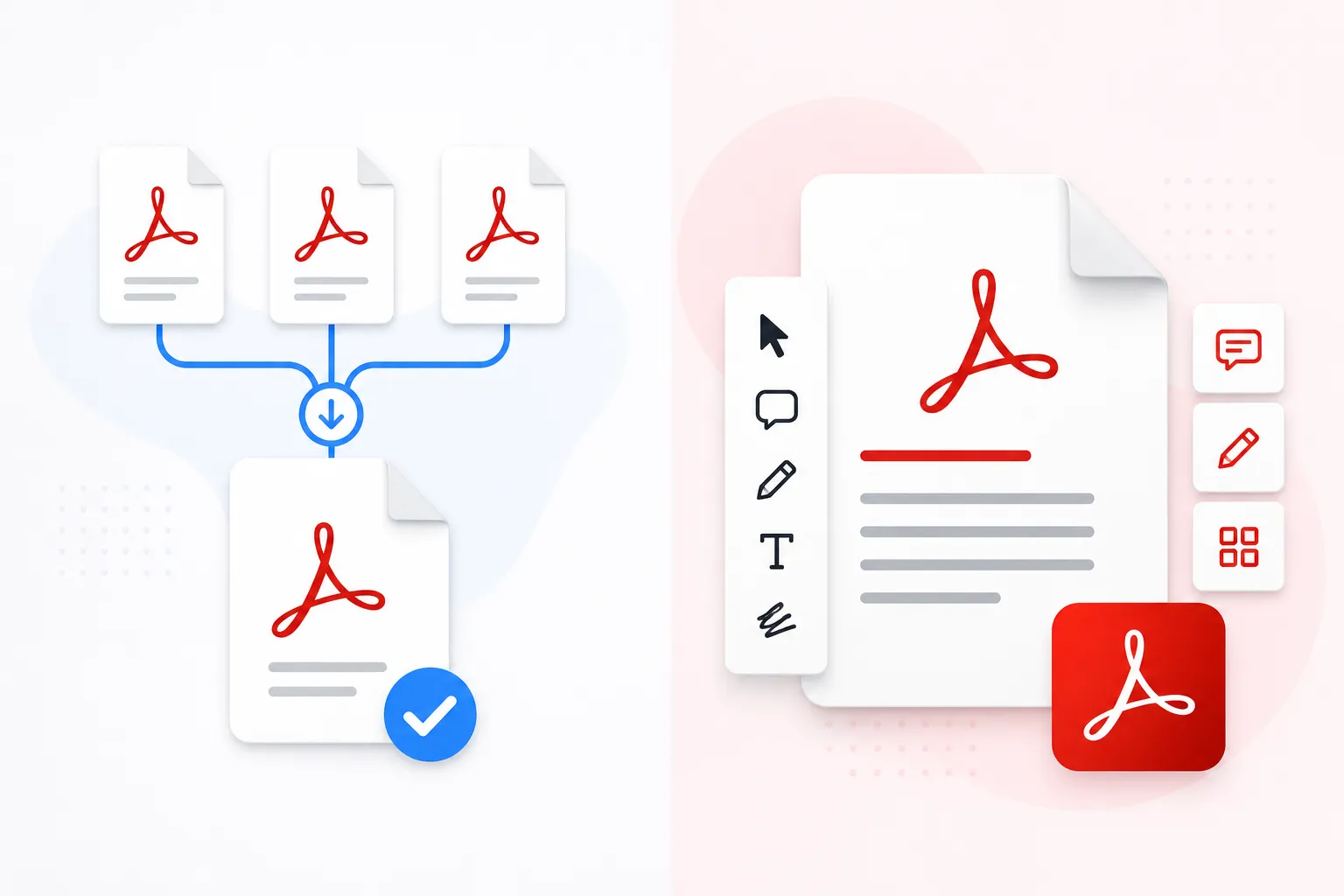
Merging PDFs means combining multiple PDF files into one single document. Here are real-life scenarios where PDF merging is essential:
Students
Combine lecture notes, research papers, and assignments into one file for submission
Business Professionals
Create comprehensive reports by merging weekly or monthly reports
Legal Professionals
Combine exhibits, affidavits, and legal documents into a single case file
Photographers
Create portfolios by merging multiple image PDFs into one presentation
Common Use Cases for PDF Merging
- Invoicing: Combine multiple invoices into a monthly statement
- Contract Management: Merge signed pages with contract documents
- E-books: Combine chapters into a complete book
- Scanned Documents: Merge multiple scanned pages into one file
- Job Applications: Combine resume, cover letter, and portfolio
- Research: Merge multiple research papers for literature review
💡 Pro Tip
💡 Did You Know?
The average professional spends 2-3 hours per week just organizing and combining PDFs. A good PDF merger can save you over 100 hours per year!
How to Choose the Right PDF Merger
Not all PDF mergers are created equal. Here's what to look for:
| Feature | Why It Matters |
|---|---|
| Client-side processing | Your files stay private - never uploaded to servers |
| No file size limits | Merge large documents without restrictions |
| Drag & drop interface | Easy to use, no learning curve |
| Page reordering | Arrange pages in any order before merging |
| Compression options | Reduce file size while maintaining quality |
| Free with no watermark | Professional results without paying |
Step-by-Step Guide to Merging PDFs
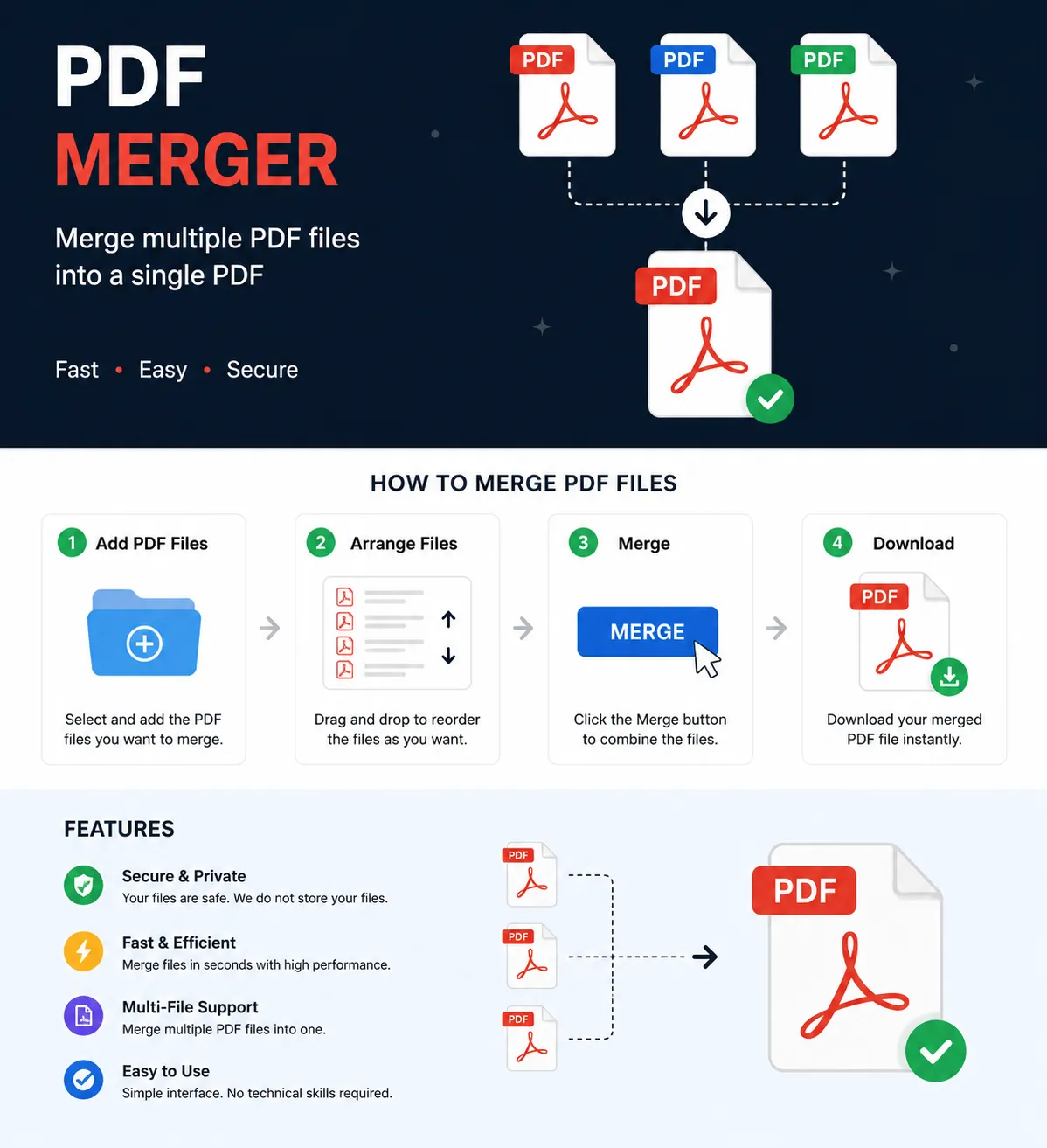
Follow these simple steps to merge your first PDF:
📘 Info
Upload Your PDFs
Click the upload area or drag & drop your PDF files. You can select multiple files at once.
📘 Info
Arrange in Order
Use the up/down buttons to reorder your PDFs. The top file will be first in the merged document.
📘 Info
Choose Settings
Enable or disable compression. For best quality, keep compression off for text-heavy documents.
📘 Info
Merge & Download
Click Merge, wait a few seconds, then download your combined PDF file.
10 Essential Tips for Beginners
- Always keep backups - Never delete your original PDFs until you've verified the merged file is correct
- Check page order - Preview the order before merging to avoid mistakes
- Use client-side tools - For privacy, always use tools that process files locally
- Disable compression for important docs - Legal and medical documents should never be compressed
- Name files clearly - Use descriptive names like "Chapter1.pdf" instead of "doc1.pdf"
- Check file sizes - Very large PDFs (>50MB) may take longer to process
- Preview before downloading - Many tools show page thumbnails before merging
- Use keyboard shortcuts - Ctrl+A selects all files, Ctrl+Click selects multiple
- Organize source files - Keep all PDFs you want to merge in one folder
- Test with 2 files first - If you're new, try merging 2 small PDFs to understand the process
Common Mistakes to Avoid
⚠️ Warning
❌ Mistake #1: Uploading Sensitive Files to Unknown Servers
Solution: Always use client-side PDF mergers that process files locally in your browser.
❌ Mistake #2: Not Checking Page Order
Solution: Always preview or reorder your PDFs before clicking merge.
💡 Pro Tip
❌ Mistake #3: Deleting Originals Too Soon
Solution: Keep original files for at least a week after merging.
Troubleshooting Common Issues
🔒 "File is password protected"
Remove password protection first using a PDF unlocker tool, then merge.
📏 "Pages are different sizes"
This is normal. Most mergers preserve original page sizes.
🐌 "Merging is slow"
Large files take time. Try compressing files before merging.
📄 "Some pages are blank"
The source PDF might be corrupted. Try re-saving it from original document.
Advanced Tips for Power Users
- Batch Processing: Merge dozens of PDFs at once with tools that support bulk operations
- Add Page Numbers: Use a PDF editor to add page numbers after merging
- Create Bookmarks: Add clickable table of contents to large merged documents
- Reduce File Size: After merging, use compression to reduce file size for email
- Extract Pages: Some mergers also let you extract specific pages from PDFs
Frequently Asked Questions
Q: Can I merge PDFs for free?
Yes! Our PDF merger is completely free with no watermarks or hidden fees.
Q: Is it safe to merge PDFs online?
It depends on the tool. Our tool processes files locally - files never leave your device.
Q: What's the maximum file size?
Each PDF can be up to 50MB. You can merge up to 50 PDFs at once.
Q: Can I merge PDFs on my phone?
Yes! Our tool works on any device - desktop, tablet, or mobile.
Conclusion & Next Steps
Congratulations! You now know everything you need to start merging PDFs like a pro. Let's recap what you've learned:
- PDFs are universal documents that look the same everywhere
- Merging PDFs combines multiple files into one document
- Always choose client-side tools for privacy and security
- Follow the 4-step process: Upload → Reorder → Settings → Merge
- Avoid common mistakes like deleting originals too soon
🚀 Ready to Try It Yourself?
Now that you know how to merge PDFs, put your knowledge into practice!
Start Merging PDFs Now →